User Guide
IBook is an inventory organizing system specially designed to manage products in a store.
Target User
IBook’s target users are small-scale grocery storekeepers who are having issues with product organization and keeping track of expiring items.
We aim to help these storekeepers by
- Simplifying the process of inventory organization.
- Minimizing groceries wastage due to unnoticed expiring of items.
Structure of This Document
This document is structured chronologically so that you can follow through with this guide while using the product.
If you feel lost at any point in time, you can always refer to the Table of Contents.
Table of Contents
- 1. Quickstart
- 2. Reading the document
-
3. Features
-
3.1 Product Commands
- 3.1.1 Listing all products :
list - 3.1.2 Adding a product :
add - 3.1.3 Updating a product :
update - 3.1.4 Deleting a product :
delete - 3.1.5 Finding products :
find - 3.1.6 Finding out of stock products :
out-of-stock - 3.1.7 Updating multiple products :
update-all - 3.1.8 Deleting multiple products :
delete-all
- 3.1.1 Listing all products :
- 3.2 Item Commands
- 3.3 Miscellaneous Commands
-
3.1 Product Commands
- 4. Storage
- 5. FAQ
- 6. Glossary
- 7. Command summary
1. Quickstart
-
Ensure you have Java 11 or above installed on your computer.
-
Download the latest
ibook.jarfrom here. -
Copy the file to the folder you want to use as the home folder for iBook.
-
Type
java -jar ibook.jarin a terminal in the same directory as the file to start it. Alternatively, double-click the file to start the app.If you are using macOS, please look at FAQ before proceeding.
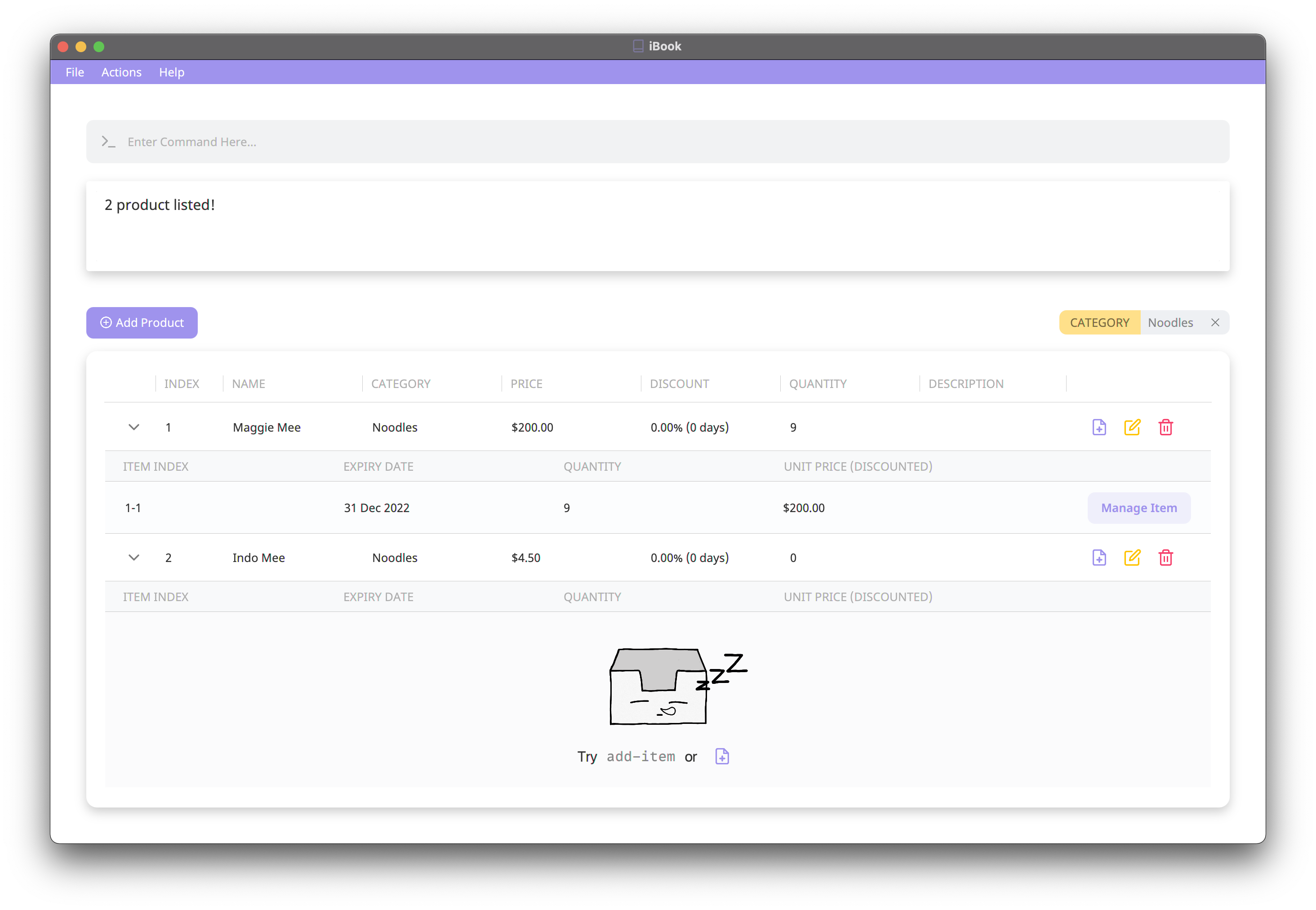
An interface similar to the image below should appear in a few seconds.
-
Type the command in the command box and press enter to execute it.
Some example commands you can try:
-
list: Lists all products. -
add n:Maggie Mee c:noodles p:3.00 d:curry flavour: Adds a product namedMaggie Meeto iBook. -
delete 3: Deletes the 3rd product shown in the displayed product list.
-
-
Refer to the Features below for details of each command.
2. Reading the document
This section will introduce you to the different symbols and syntax that are used throughout this guide.
Please read through this section before proceeding further to avoid getting confused.
2.1 Text Style
Text that appears in this style are special terms or commands related to iBook.
2.2 Special Boxes
Additional Information
Text that appears in an information box indicates additional information that is good to know.
 Information:
Example additional information.
Information:
Example additional information.
Caution
Text that appears in a caution box should be followed carefully to avoid unintended consequences.
 Caution:
Example warnings.
Caution:
Example warnings.
Tip
Text that appears in a tip box is useful information to improve your experience with iBook.
 Tip:
Example tip.
Tip:
Example tip.
2.3 Sections of the Application Window
The application window is divided into a Command Box, Result Window as well as a Display Table that includes all the products.
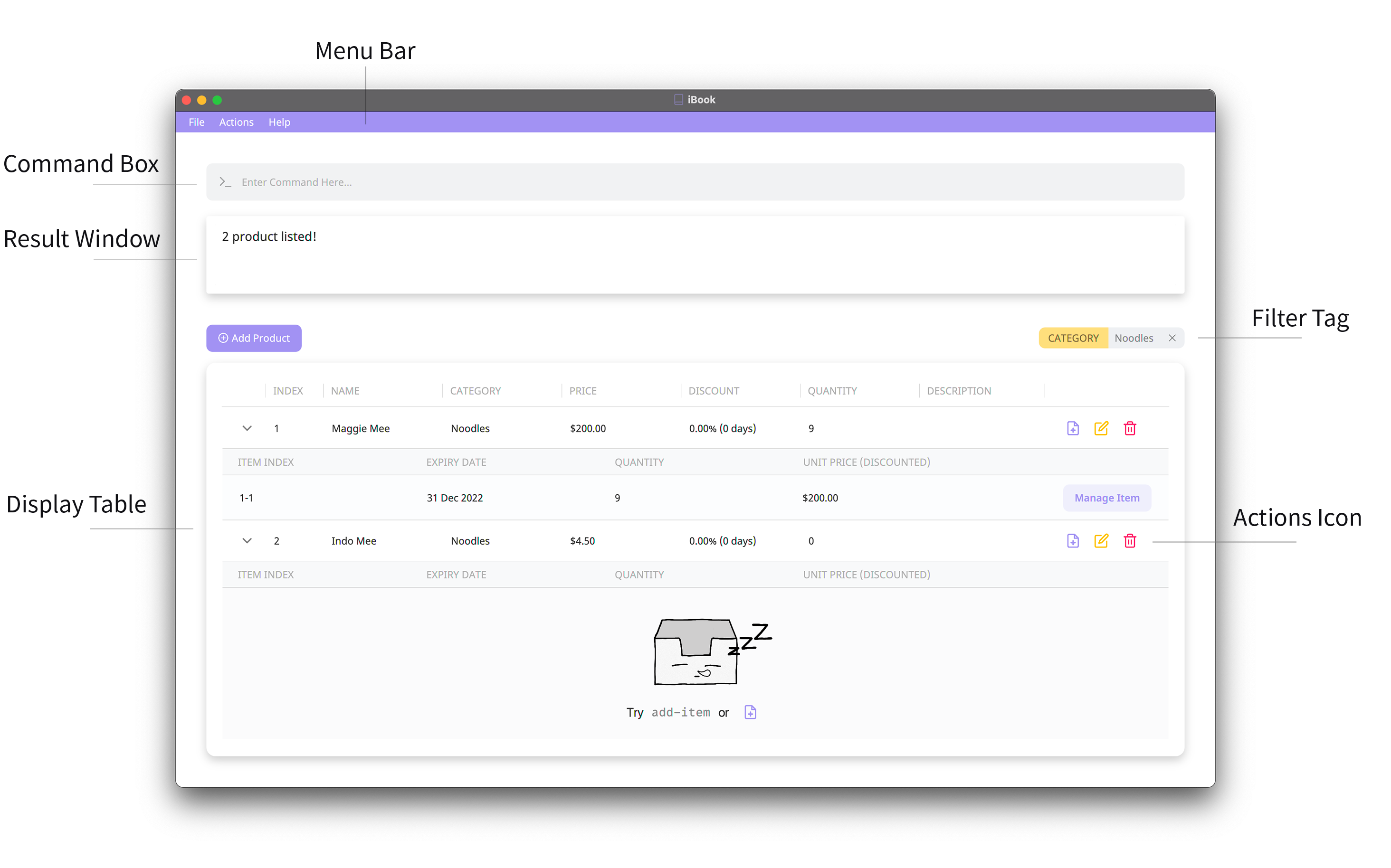
The main mode of navigation in iBook is through the Command-line Interface (CLI).
You can type in commands into the command box and press enter on your keyboard to execute them.
Alternatively, you can interact with the application through buttons, such as the  button.
Either way, the result window will display the results of executing the command. The display table will update accordingly based on the executed command.
2.4 Feature Format
Each command will be described in the following format.
x.x.x Do something: xxx-command
Do something very important
Format : xxx-command XXX YYY [AAA] [BBB]
| Compulsory Fields |
XXX,
YYY
|
| Optional Fields |
AAA,
BBB
|
- Information 1…
- Information 2…
Examples :
xxx-command XXX YYY
GUI alternative
...
Although iBook is a CLI based application, we do provide a GUI alternative for some of the commonly used commands.
If a command has a GUI alternative, the subheading GUI alternative will be included in the same section.
You can interact with the application through buttons, such as the button.
Product and Item:
As most of the commands revolve around products and items. We advise you to take a look at the Glossary section for our definition of products and items before proceeding.
2.5 Command Format
-
Words in
UPPER_CASEare additional user inputs supplied to a command.
e.g. In theadd n:NAMEcommand,NAMEis an input that can be supplied asadd n:Maggie Mee. -
Inputs in square brackets are optional.
e.g. If the command specifiesn:NAME [c:CATEGORY], bothn:Maggie Mee c:noodleandn:Maggie Meeare acceptable. -
Inputs separated by a vertical bar (
|) inside brackets denote that either one of them can be provided, but not both.
e.g. if the command specifies[p:PRICE | sp:START_PRICE ep:END_PRICE], then an empty input,p:2.00, andsp:1.00 ep:5.00are all acceptable. However,p:2.00 sp:1.00 ep:5.00is not accepted. -
Inputs of a command can be in any order.
e.g. if the command specifiesn:NAME c:CATEGORY,c:CATEGORY n:NAMEis also acceptable. -
Extra inputs for commands that do not take in any (such as
exit,list,expired,out-of-stock) will be ignored.
e.g. the commandexit 123will be interpreted asexit. -
If two inputs of the same tag are given, the latter will be taken.
e.g. the commandadd n:Maggie Curry n:Maggie Chicken p:3.00 p:3.50will add a product with the nameMaggie Chickenand with a price of3.50.
Important notes about inputs:
Inputs containing a colon (:) might cause unexpected behaviour. You are strongly recommended to add a backslash (\) before a colon character in your input.
e.g. To provide a product name of Nescafe: special edition, you should type n:Nescafe\: special edition.
2.6 Command inputs
| Input | Description |
|---|---|
NAME |
Name of the product. |
CATEGORY |
Category of the product. |
PRICE |
Price of the product. A valid price is a positive number, possibly prepended by a $ sign. |
START_PRICE |
Start price of the product. Used for find command. |
END_PRICE |
End price of the product. Used for find command. |
DESCRIPTION |
Description of the product. |
EXPIRY_DATE |
Expiry date of the item. |
QUANTITY |
Quantity of the item. |
DISCOUNT_RATE |
Percentage of discount given to an item once it nears the expiry date. |
DISCOUNT_START |
Number of days before the expiry date to start the discount. |
3. Features
3.1 Product Commands
3.1.1 Listing all products : list
Shows the list of all products in iBook.
Format: list
| Compulsory Fields | |
| Optional Fields |
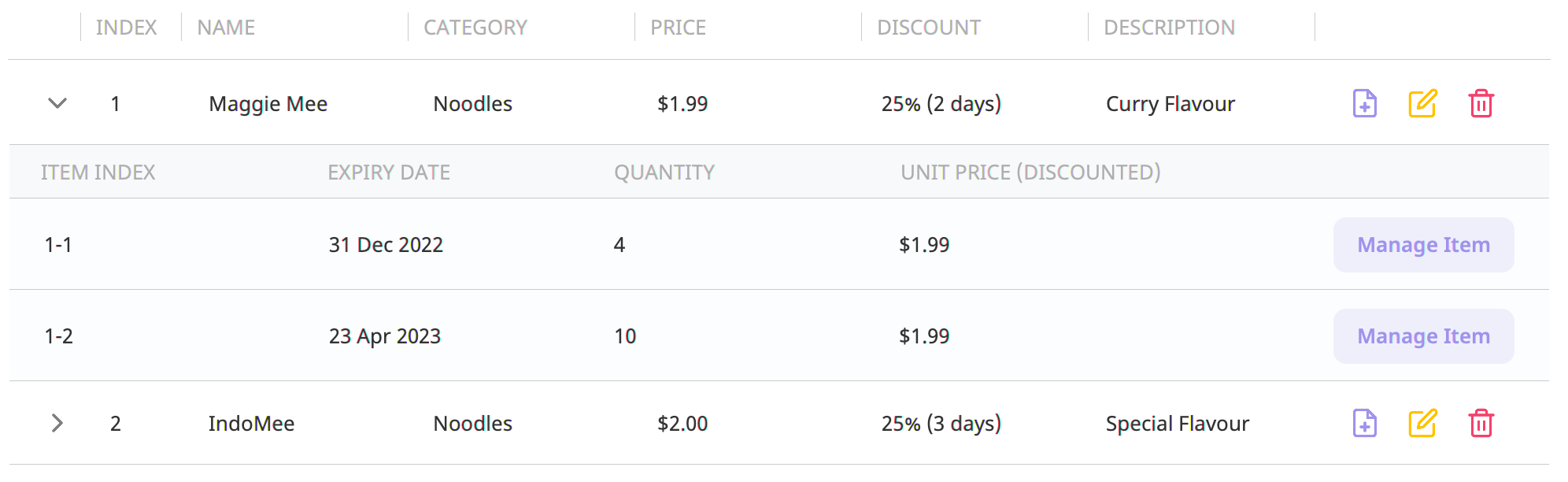
- All products will be listed on the main table.
- Click
 on the left side of the product to view the items of the product.
Example:
- After running the
listcommand, the table should look similar to the image below.
3.1.2 Adding a product : add
Adds a new product to iBook.
Format: add n:NAME p:PRICE [c:CATEGORY] [d:DESCRIPTION] [dr:DISCOUNT_RATE] [ds:DISCOUNT_START]
| Compulsory Fields |
NAME, PRICE
|
| Optional Fields |
CATEGORY, DESCRIPTION, DISCOUNT_RATE, DISCOUNT_START
|
- Only a single product would be added at a time.
- The new product added must not be of the same
NAMEandCATEGORYas any existing products in iBook. - The
NAMEand thePRICEfields cannot be empty. - If the
CATEGORYfield is not specified or is empty, the default category,Miscellaneous, would be used. - The default
DISCOUNT_RATEis 0%. - The default
DISCOUNT_STARTis 0.
Examples:
-
add n:Maggie Mee p:3.00 c:noodles d:curry flavour dr:25 ds:10.
GUI Alternative
Click button above the table to add a new product.
A pop-up window similar to the image shown next will appear.
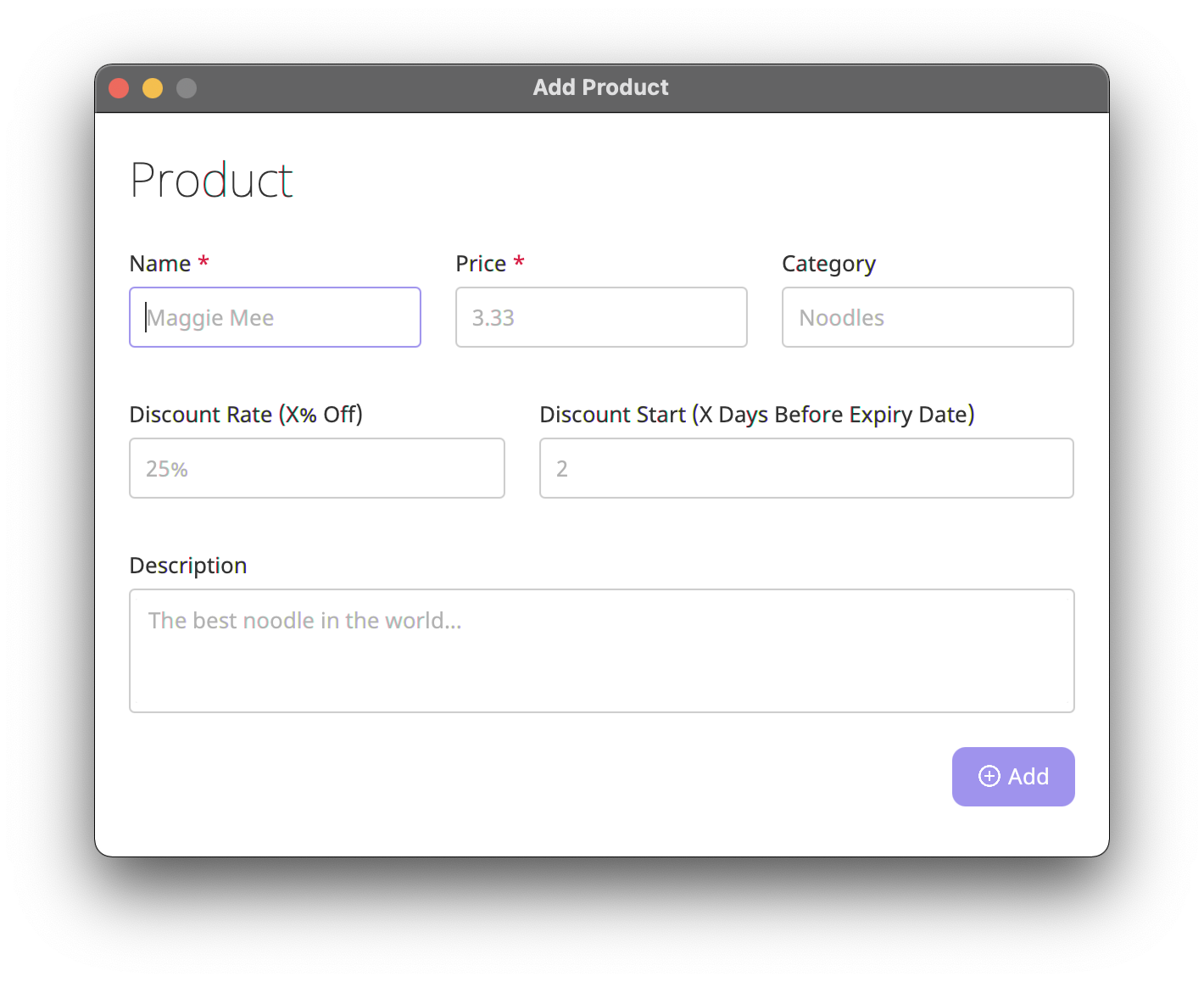
You can now fill in the name and the price. Optionally, you can also fill in the category, description, discount rate and discount start.
Required fields have a red asterisk * beside their label.
After filling in the required fields, click
 to add a new product.
3.1.3 Updating a product : update
Updates the product at the specified INDEX.
Format: update INDEX [TAG:NEW_VALUE ...]
Valid tags and their values: [n:NAME] [c:CATEGORY] [p:PRICE] [d:DESCRIPTION] [dr:DISCOUNT_RATE] [ds:DISCOUNT_START]
| Compulsory Fields |
INDEX, Must provide at least one of the optional fields |
| Optional Fields |
NAME, CATEGORY, PRICE, DESCRIPTION, DISCOUNT_RATE, DISCOUNT_START
|
- The index refers to the index of a product as shown in the table.
- The index must be a positive integer (1, 2, 3, …).
- At least one of the optional fields must be provided.
- Existing values will be updated to the new values.
Examples:
-
update 2 p:14.99Updates the price of the 2nd product to be14.99. -
update 3 c:bread d:ABC brandUpdates the category of the 3rd product tobreadand its description toABC brand.
GUI Alternative

Click  on the right side of any product in the table to update the product.
A pop-up window similar to the image shown next will appear
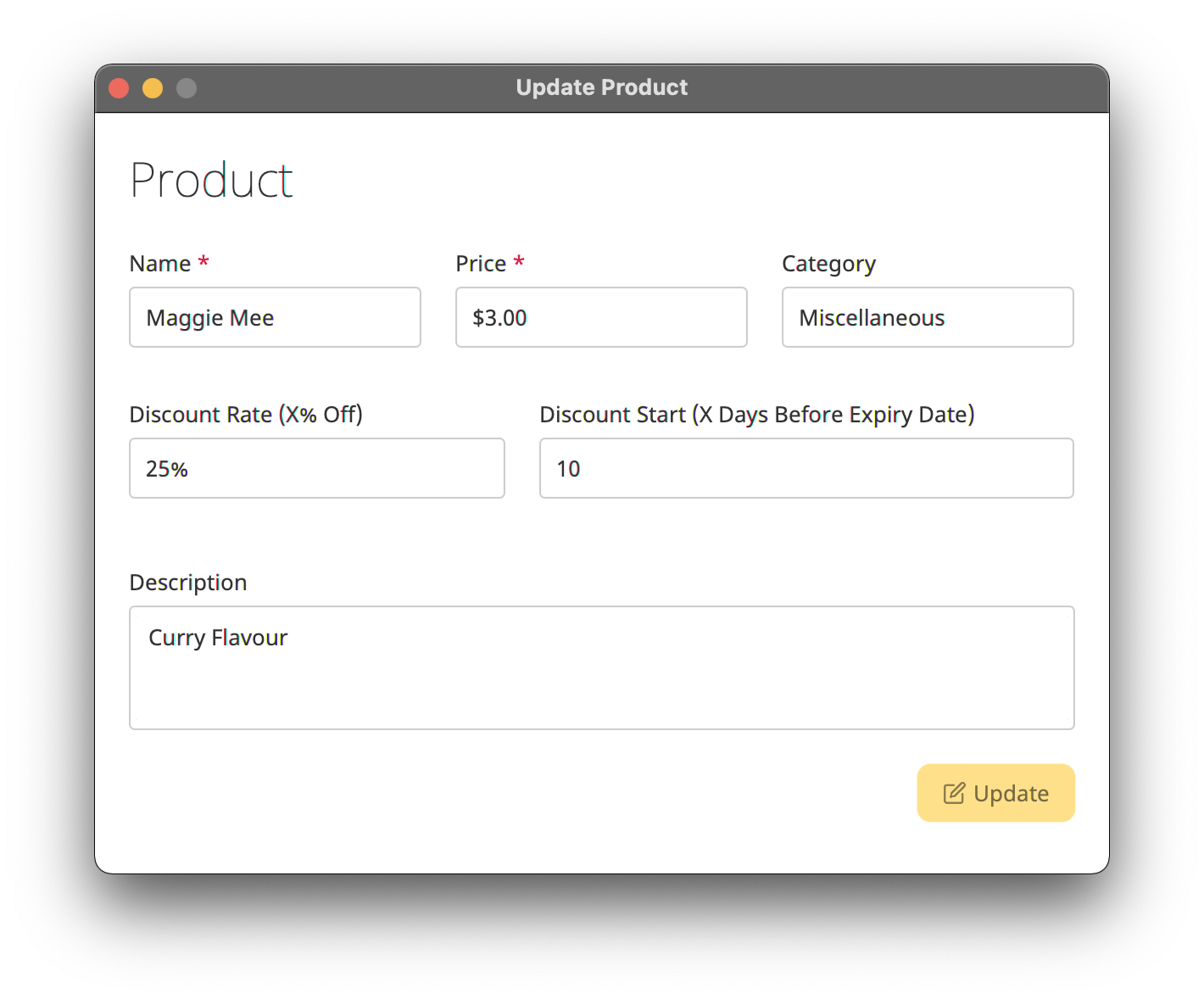
You can now change the details of the product.
After finishing updating the details, click
 to update the product.
3.1.4 Deleting a product : delete
Deletes the product at a specified INDEX.
Format: delete INDEX
| Compulsory Fields | INDEX |
| Optional Fields |
- The index refers to the index of a product as shown in the table.
- The index must be a positive integer (1, 2, 3, …).
Examples:
-
listfollowed bydelete 2deletes the 2nd product in the iBook.
GUI Alternative
Click  on the right side of any product to delete the product.
A pop-up window similar to the image below will appear.
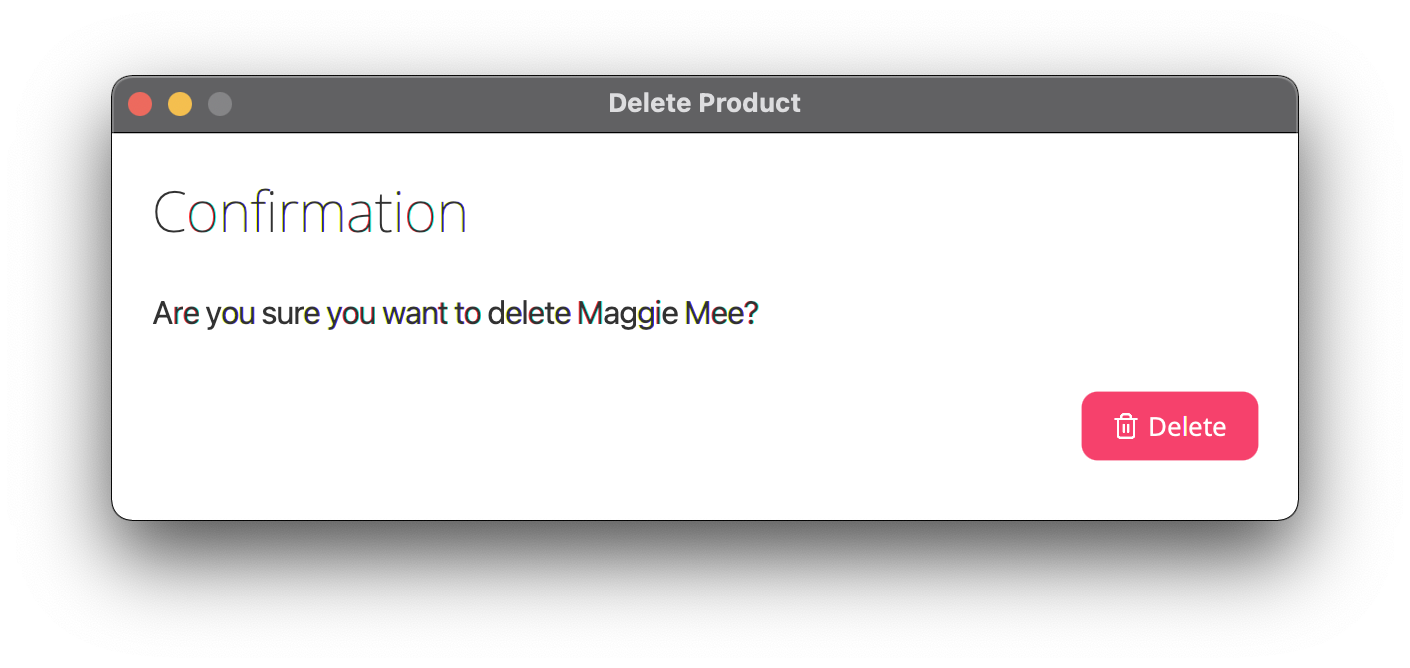
You can now delete the product by clicking the  button.
3.1.5 Finding products : find
Finds products that fit certain filters.
Format: find [TAG:VALUE ...]
Valid tags and their values: [n:NAME] [c:CATEGORY] [p:PRICE | sp:START_PRICE ep:END_PRICE] [d:DESCRIPTION]
| Compulsory Fields | Must provide at least one of the optional fields |
| Optional Fields |
NAME, CATEGORY, PRICE or (START_PRICE END_PRICE), DESCRIPTION
|
- For the name, category and description fields, the value provided can be a partial match of the exact product.
- To search for a specific price,
PRICEshould be used. - To search for a range of prices,
START_PRICEandEND_PRICEshould be used instead. - If the
START_PRICEis provided, theEND_PRICEmust also be provided, and vice versa. - At least one of the optional fields must be provided.
Examples:
-
find n:Waterfinds all products that containWaterin the name. -
find n:Bread c:Foodfinds all products that containBreadin the name and haveFoodas its category. -
find c:Foodfinds all products that haveFoodas its category. -
find sp:0 ep:10finds all products that have a price between $0 and $10.
After a valid find command is entered, a filter tag will appear on the top right corner of the display table.
Example filter tag:

You can click  on the filter tag to remove the filtering.
A filter tag will always appear whenever a command that involves filtering is executed. All filter tags will be cleared once there is a modification to product/item.
(e.g. find, expired, out-of-stock)
3.1.6 Finding out of stock products : out-of-stock
Lists products that are out of stock.
Format: out-of-stock
| Compulsory Fields | |
| Optional Fields |
- A product is considered out of stock if it does not have an item.
GUI Alternative
On the menu bar, select Actions > Find Out of Stock products.
Only one filter can be applied at a time. Thus, expired and out-of-stock filters cannot be used with other filters.
3.1.7 Updating multiple products : update-all
Updates all products currently shown in the table.
Format: update-all [TAG:VALUE ...]
Valid tags and their values: [n:NAME] [p:PRICE] [c:CATEGORY] [d:DESCRIPTION] [dr:DISCOUNT_RATE] [ds:DISCOUNT_START]
| Compulsory Fields | Must provide at least one of the optional fields |
| Optional Fields |
Name, PRICE, CATEGORY, DESCRIPTION, DISCOUNT_RATE, DISCOUNT_START
|
- At least one of the optional fields must be provided.
- The update will not be executed if the command will cause duplicate products.
- Two products are considered the same product if they have the same
NAMEandCATEGORY.
Examples:
-
update-all c:fruitsupdates all products in the table to have the categoryfruits. -
update-all p:5.00updates all products in the table to have a price of5.00.
3.1.8 Deleting multiple products : delete-all
Deletes all products currently shown in the table.
Format: delete-all
| Compulsory Fields | |
| Optional Fields |
If you accidentally used this command, you can use the undo command to recover the previous state.
3.2 Item Commands
3.2.1 Adding an item to a product : add-item
Adds a new item to iBook.
Format: add-item INDEX e:EXPIRY_DATE q:QUANTITY
| Compulsory Fields |
INDEX, EXPIRY_DATE, QUANTITY
|
| Optional Fields |
- The index refers to the index of a product as shown in the table.
- The index must be a positive integer (1, 2, 3, …).
- Only a single item would be added at a time.
- Two items are considered the same item when they belong to the same product and have the same
EXPIRY_DATE. - If the item to be added exists in iBook, the quantity of both items will be summed up.
Examples:
-
add-item 1 e:2022-01-01 q:10adds an item with an expiry date of01 January 2022and a quantity of10to the first product in iBook. -
add-item 1 e:2022-01-01 q:10followed byadd-item 1 e:2022-01-01 q:20adds an item with an expiry date of01 January 2022and a quantity of10to the first product in iBook, then it adds quantity20to the same item.
GUI Alternative
Click  button beside the product to add a new item.
A pop-up window similar to the image below will appear.
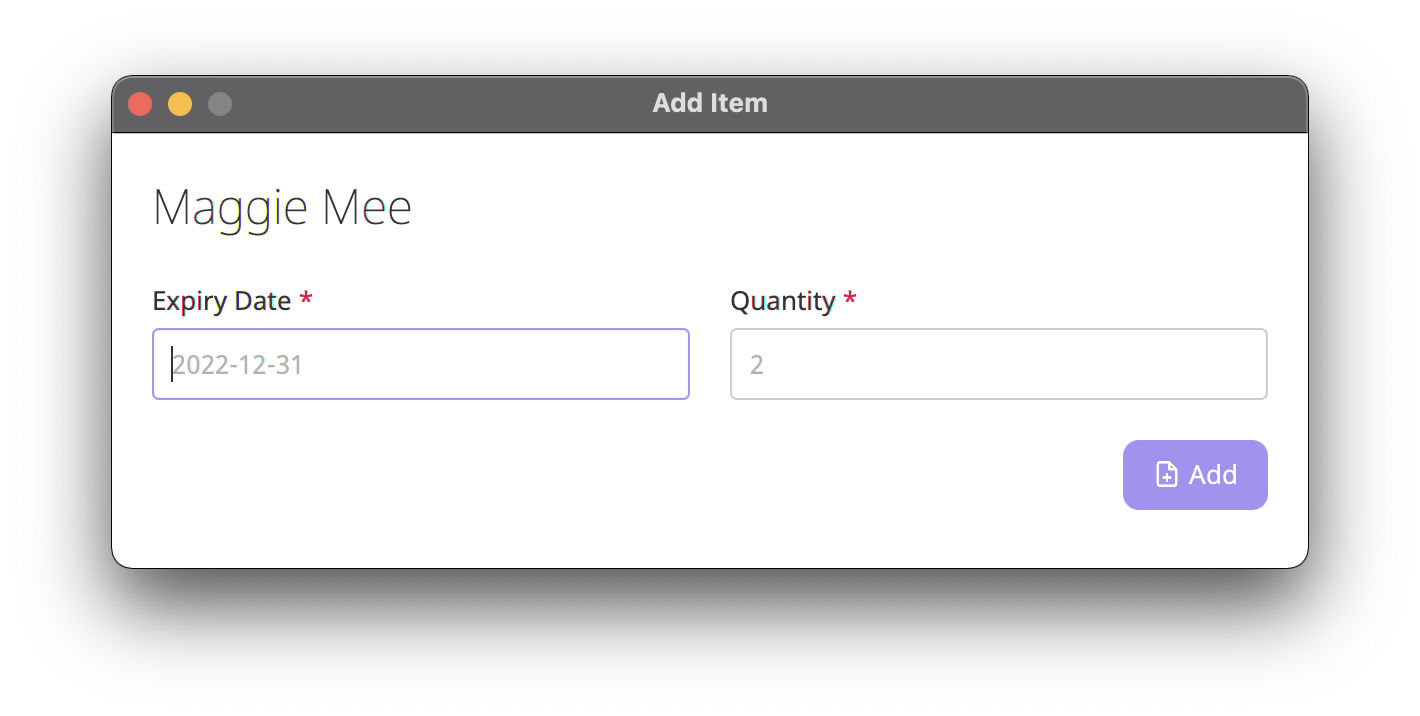
You can now fill in the details for expiry date and quantity.
After filling in the required fields, click
 to add a new item.
You can add items that have expired by inputting their expiry dates in the past.
3.2.2 Updating an item of a product : update-item
Updates an item of a specified product in iBook.
Format: update-item INDEX-INDEX [TAG:VALUE ... ]
Valid tags and their values: [e:EXPIRY_DATE] [q:QUANTITY]
| Compulsory Fields |
INDEX-INDEX, Must provide at least one of the optional fields |
| Optional Fields |
EXPIRY_DATE, QUANTITY
|
- The first index refers to the index of a product as shown in the table.
- The second index refers to the index of an item as shown in the item list of the product.
- Both the product index and the item index must be specified.
- The resulting input must be a positive integer pair (1-2, 2-3, 1-3, …).
- If an item is updated to an existing item, the quantity of both items will be summed up.
- At least one of the optional fields must be provided.
Examples:
-
update-item 1-2 q:10Updates the 2nd item of the 1st product in the table to have a quantity of10. -
update-item 2-1 e:2022-08-01Updates the 1st item of the 2nd product in the table to have an expiry date of01 Aug 2022.
GUI Alternative

Click  on the right side of the item to update it.
A pop-up window similar to the image below will appear.
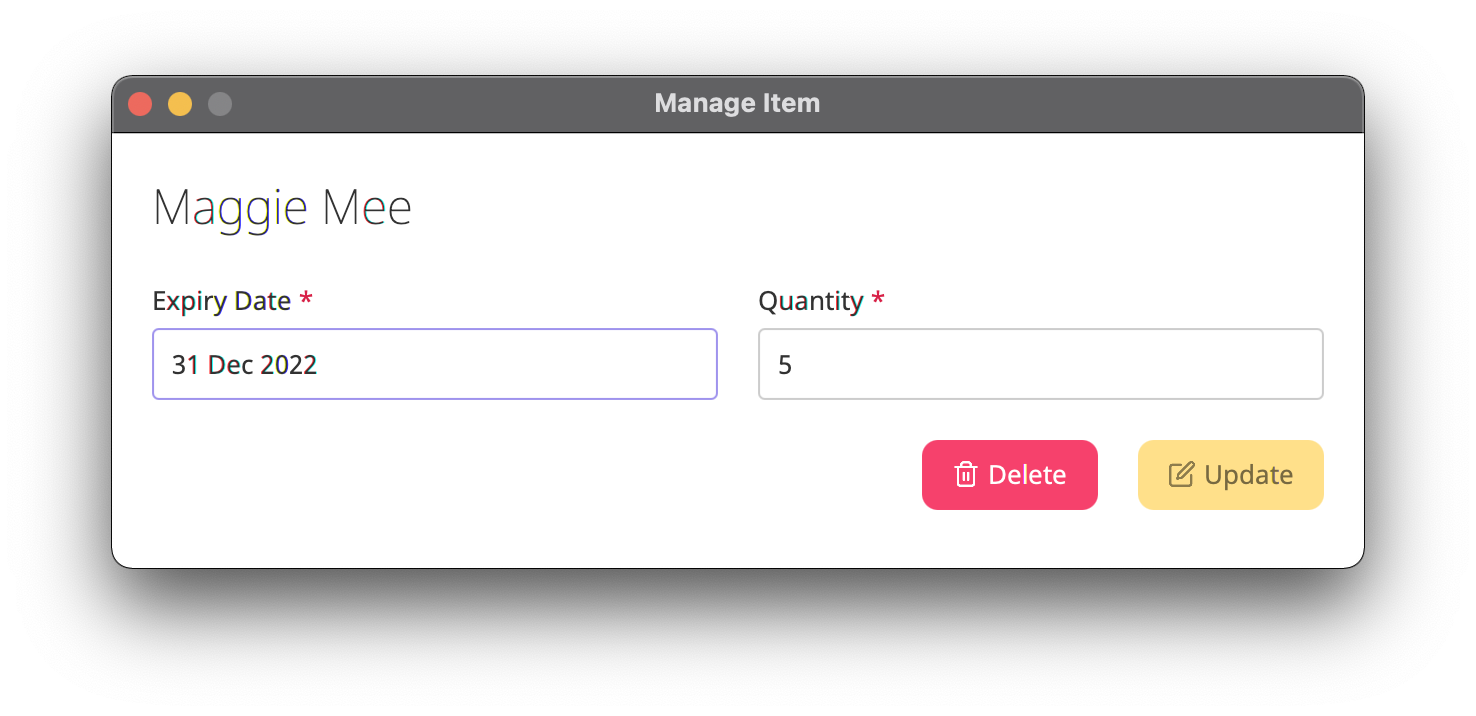
You can now modify the details for the item.
After finishing updating the fields, click on to update the item.
If the quantity of an item is updated to 0, the item is deleted.
3.2.3 Deleting an item from a product : delete-item
Deletes the item at a specified INDEX.
Format: delete-item INDEX-INDEX
| Compulsory Fields | INDEX-INDEX |
| Optional Fields |
- The first index refers to the index of a product as shown in the displayed product list.
- The second index refers to the index of an item as shown in the item list of the product.
- Both the product index and the item index must be specified.
- The resulting input must be a positive integer pair (1-2, 2-3, 1-3, …).
Examples:
-
listfollowed bydelete-item 1-2deletes the 2nd item of the 1st product in iBook.
GUI Alternative
Click on the right side of the item.
A pop-up window similar to the image below will appear.
Then, click on to delete the item.
3.2.4 Finding expired items : expired
Finds expired items.
Format: expired
| Compulsory Fields | |
| Optional Fields |
- Products that do not contain expired items will not be shown.
GUI Alternative
On the menu bar, select Actions > Find expired.
Updating an item will automatically clear the expired filter.
3.2.5 Finding expiring items: remind
Lists items that are expiring within a certain number of days.
Format: remind NUMBER_OF_DAYS
| Compulsory Fields | NUMBER_OF_DAYS |
| Optional Fields |
-
NUMBER_OF_DAYSmust be a non-negative integer (0, 1, 2, 3, …). - Products that do not have items that are expiring will not be shown.
Examples: remind 10 lists items that are expiring 10 days from now.
To find items that are expiring today, use remind 0.
3.3 Miscellaneous Commands
3.3.1 Clearing all data : clear
Clears all data in iBook.
Format: clear
| Compulsory Fields | |
| Optional Fields |
- This command will clear all the data in iBook
The difference between clear and delete-all :
-
clearwill delete all theproducts/itemsincluding those which are not showing. -
delete-allwill only deleteproducts/itemsthat are shown in the table.
If you accidentally used this command, you can use the undo command to recover the previous state.
3.3.2 Undoing most recent changes : undo
Undoes the most recent changes made to iBook.
Format: undo
| Compulsory Fields | |
| Optional Fields |
You can only undo commands that made changes to the data in iBook (i.e., commands involving add/update/delete product/item).
Undo does not preserve the order of the list, thus a product/item deleted and later added back by undo may have a different index.
3.3.3 Redoing most recently undone changes : redo
Redoes the most recently undone changes made to iBook.
Format: redo
| Compulsory Fields | |
| Optional Fields |
You can redo changes that have been undone accidentally by the undo command.
3.3.4 Exiting the program : exit
Exits iBook.
Format: exit
| Compulsory Fields | |
| Optional Fields |
Once exited, the position and the size of the iBook on the screen will be recorded and saved automatically.
4. Storage
4.1 Saving the data
iBook’s data are saved in the hard disk automatically after any command that changes the data. There is no need to save manually.
4.2 Editing the data file
iBook’s data are saved as a JSON file [JAR file location]/data/ibook.json and [JAR file location]/preferences.json.
-
[JAR file location]/data/ibook.jsonstores data related toproductanditem. -
[JAR file location]/preferences.jsonstores data related to the position and the size of the iBook.
Advanced users are welcome to update data directly by editing that data file.
If your changes to the data file make it invalid, iBook will discard all data and start with an empty data file on the next run.
5. FAQ
Q: Why can’t I open iBook with a double-click on macOS?
A: You might be having an issue with untrusted developers, please type java -jar ibook.jar in a terminal to start the application.
Q: Why can’t I find the data and preferences file when I open the application in macOS?
A: This is a bug related to the macOS default JavaLauncher. The issue will occur when you use double-click to start iBook. To fix this problem, please type java -jar ibook.jar in a terminal to start the application.
Q: Can I use iBook with full-screen mode in macOS?
A: Unfortunately, due to a limitation of the GUI library, iBook does not perform well with full-screen mode in macOS. Nevertheless, you can work around this issue by double-clicking on the title bar. IBook will then automatically resize to fill the screen.
Q: How do I transfer my data to another Computer?
A: Install the app on the other computer and overwrite the empty data file it creates with the file that contains the data of your previous iBook home folder.
6. Glossary
| Term | Meanings |
|---|---|
| Mainstream OS | Windows, Linux, Unix, macOS |
| Products | Goods that can be uniquely identified using name and category |
| Items | Copies of products that have different expiry dates |
| Command-line interface(CLI) | An interface where users type in text(commands) to interact with the program |
| Graphical user interface(GUI) | An interface where users interact with graphical icons to interact with the program |
| String | A sequence of characters that can have whitespace in between |
| Substring | A contiguous sequence of characters inside a string |
7. Command summary
7.1 Product Commands
| Action | Format, Examples |
|---|---|
| Add |
add n:NAME p:PRICE c:CATEGORY d:DESCRIPTION dr:DISCOUNT_RATE ds:DISCOUNT_START e.g., add n:Maggie Mee p:3.00 c:noodles d:curry flavour dr:50 ds:10
|
| List | list |
| Update |
update INDEX [TAG:NEW_VALUE ...] e.g., update 2 n:Apple
|
| Delete |
delete INDEXe.g., delete 3
|
| Find |
find [TAG:VALUE] e.g., find n:Maggie find c:noodles find n:Chocolate Bread p:3.00
|
| Out of Stock | out-of-stock |
| Update All |
update-all [TAG:NEW_VALUE ...] e.g. update-all p:3.00 d:Very tasty
|
| Delete All | delete-all |
7.2 Item Commands
| Action | Format, Examples |
|---|---|
| Add |
add-item INDEX e:EXPIRY_DATE q:QUANTITY e.g. add-item 1 e:2022-01-01 q:10
|
| Update |
update-item INDEX-INDEX [TAG:NEW_VALUE ...] e.g. update-item 2-1 e:2022-08-01 update-item 1-2 q:10
|
| Delete |
delete-item INDEX-INDEX e.g. delete-item 2-1
|
| Expired | expired |
| Remind |
remind DAYS e.g. remind 10
|
7.3 Miscellaneous Commands
| Action | Format, Examples |
|---|---|
| Clear | clear |
| Undo | undo |
| Redo | redo |
| Exit | exit |